How to Run a Hybrid Meeting: Setup, Steps and Fixes

You're about to start a meeting. People around the table are comparing notes, someone's connecting a laptop, and a remote colleague is asking whether the conversation has already begun. The call works, but the meeting hasn't been designed for everyone.
Knowing how to run a hybrid meeting means solving two problems together: how the room carries sound and images, and how the facilitator gives everyone access to the discussion. Sometimes the right answer is better equipment. Sometimes it's asking everyone to join individually, especially when someone needs the control they have at home.
Equipment Checklist for Each Room Size
Say a team of six gathers in a boardroom with a laptop propped at the far end. Their remote colleague hears the loudest voice but misses quieter comments. Turning up the laptop volume won't fix missing microphone coverage.
Buy for intelligible speech before camera features. A useful starting point is this recommended equipment layout, adjusted after testing the actual room.
Hybrid meeting equipment by room size
Room size | Camera | Microphones | Display | Remote setup |
|---|---|---|---|---|
Huddle room (2-4 seats) | One wide-angle camera with auto framing | One table microphone | About 55 inches | Headset or laptop for each remote attendee |
Conference room (6-8 seats) | Camera framing speakers at near-eye level | Table microphone array covering all seats | 65-inch display or larger | Remote faces visible on the main display |
Boardroom (10-14 seats) | Two cameras or a speaker-tracking camera | Ceiling or table microphones, acoustically tested | 65-inch display or larger, or two displays | Remote attendees in a shared gallery view |
Large training room (16 or more seats) | Presenter camera plus audience coverage | Dedicated audio system with echo cancellation and automatic gain control | Displays positioned for readable content throughout the room | Headphones and direct access to shared materials |
These are starting specifications, not guarantees. A long glass-walled room can need more acoustic treatment than a larger furnished room. Use the conference room technology guide to plan the complete setup rather than choosing devices separately.
Keep one room audio system in charge
Multiple open laptop microphones can pick up sound from the room speakers and send it back into the call, producing echo and feedback. In a small room, a well-placed conference microphone is better than several competing laptop inputs. Larger rooms need coordinated microphone coverage, not more open devices.
Choose echo cancellation, automatic gain control, and full-duplex audio, which allows people to speak and hear simultaneously. A Microsoft Research paper on spatial audio in hybrid meetings describes a study with 75 employees in which spatial audio improved perceived interactivity, shared space, ease of understanding, and several turn-taking measures compared with mono audio.
Spatial audio is useful where supported, but it won't rescue poor speech capture. Before anyone arrives, sit in the farthest seat, speak at normal volume, and have someone outside the room confirm that they can hear you and identify your face. Test screen sharing and an interruption too, not just a microphone greeting.
How to Prepare a Hybrid Meeting Before Anyone Joins
Book live time only when a decision, collaborative task, or sensitive discussion needs real-time interaction. If you're distributing information, send an update with a clear route for questions.
That discipline matters. In its 2022 Work Trend Index, Microsoft reported that weekly time spent in meetings for the average Teams user had increased 252% globally since February 2020. More scheduled conversation isn't the same as better coordination.
Put an owner against every preparation task
Write the purpose and desired outcome. Put both in the invitation. For example, ask participants to choose a launch approach and assign the delivery owner, rather than inviting everyone to a vague sync. Include people who contribute knowledge, make the decision, or need to hear a sensitive discussion directly.
Name a facilitator and remote liaison. The facilitator manages turns and keeps discussion on purpose. The liaison watches chat, raised hands, captions, and signs of connection trouble. The common slip is asking the presenter to do everything, then discovering nobody noticed the remote queue.
Create a shared agenda and workspace. Send materials at least a day ahead as a practical preparation standard. Use a shared document for questions and a separate decision log with fields for the decision, owner, and deadline. Slides available only on the room computer leave remote attendees dependent on the presenter.
Choose a deliberate duration. Try a 25- or 50-minute booking rather than defaulting to an hour. Assign a timekeeper who can flag when discussion threatens the intended outcome. Back-to-back hour blocks leave no room for overruns, room changes, or basic setup.
Reserve a ten-minute technical check. Ask every remote attendee to confirm room audio, their own microphone, the room view, and shared-screen readability. Test their ability to contribute to the document, too. A connected participant isn't necessarily a participant who can hear or edit.
Set the speaking protocol in advance. Ask people to identify themselves, use the hand-raise queue, and pause after questions to accommodate latency. Put the rules in the agenda so the facilitator can enforce an agreed process rather than introduce restrictions mid-discussion.
The preparation flow should make the live-meeting decision before anyone starts configuring equipment.
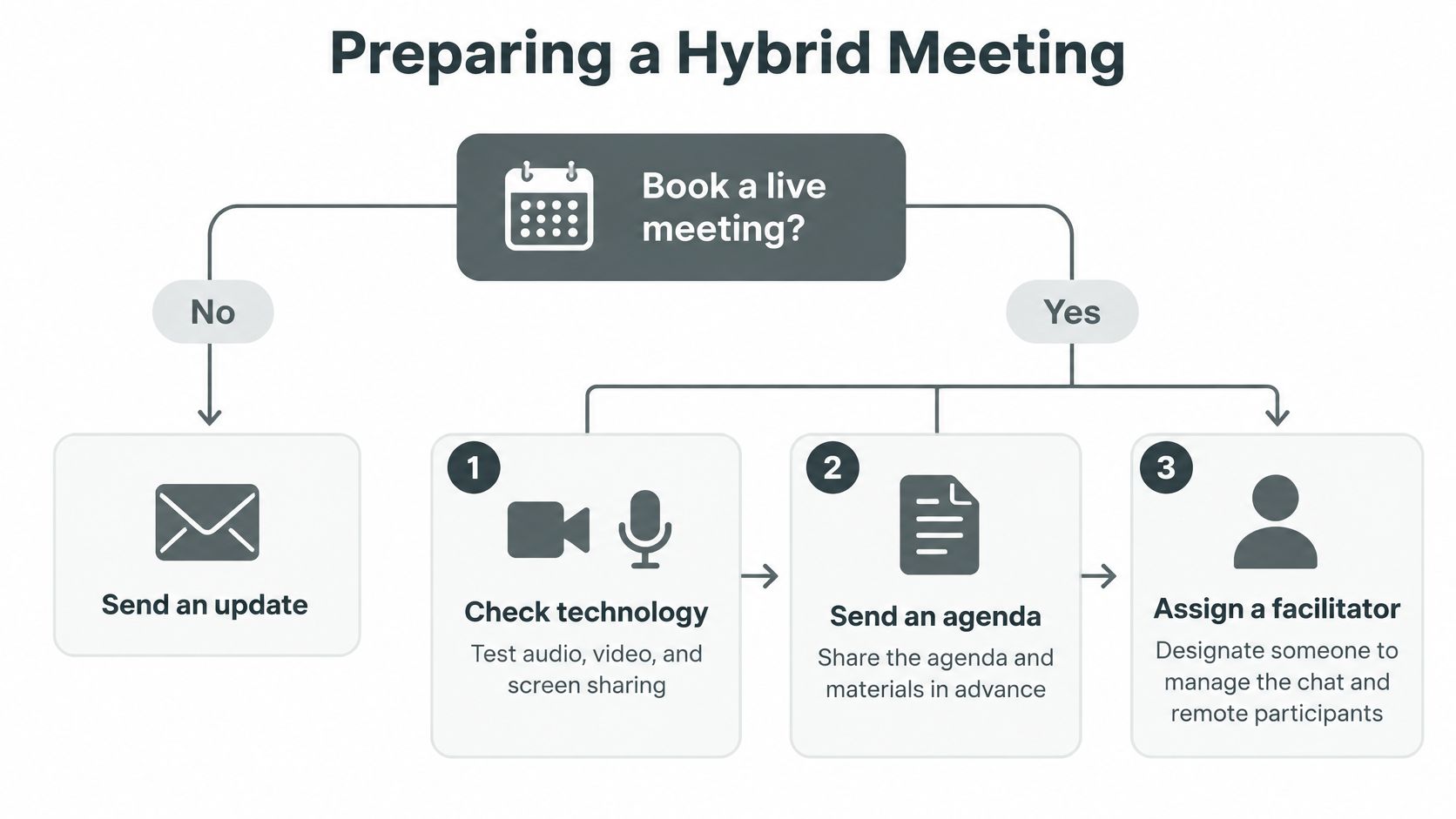
Before opening the agenda: Know who will notice if a remote participant cannot contribute.
At one minute before the start, the facilitator should have the agenda on screen, remote participants visible where cameras are being used, and the decision log open. The presenter should already know how to share content without hiding the participant view.
How to Run the Session So Remote Attendees Take Part
A familiar failure pattern starts with the room talking among itself. In a hypothetical session, the first ten minutes belong to people around the table; by minute eleven, remote colleagues have stopped trying to enter the conversation.
Microsoft's 2022 Work Trend Index findings on hybrid inclusion found that 43% of remote workers didn't feel included in meetings, while only 27% of organizational leaders reported that their companies had created hybrid-meeting etiquette. The facilitator has to manage participation, not just the agenda.
Give remote colleagues a visible place alongside the shared work.

Maintain one shared conversation
Open with an audio confirmation. Ask a remote attendee whether they can hear normal conversation across the room, not just the host.
State the speaking protocol aloud. Reinforce the business meeting etiquette that applies equally to both locations.
Invite remote input first. Direct the opening question to a relevant remote colleague, with the option to pass, before the room establishes its own momentum.
Put working material in digital documents. Don't ask remote participants to interpret a physical whiteboard through a distant camera.
Capture decisions as they happen. Have the note-taker record the decision, named owner, and deadline while everyone can challenge the wording.
Restate any subgroup conclusion for the full meeting before accepting it. There are no side decisions.
Close with a verbal recap. Confirm commitments, then send reviewed notes or an approved transcript the same day.
Use the video alongside a rehearsal of your own room workflow.
If a workshop moves, announce the transition before people leave their seats. Give the remote liaison a mobile audio source, narrate off-camera activity, and keep the shared digital workspace authoritative. ACM research on mobile hybrid meetings identifies the difficulties remote participants face with turn-taking and interruptions when movement removes visual cues.
Judge conversational equity, not attendance. Count contributors, compare remote and in-room speaking time, and note unanswered questions, without demanding identical airtime from different roles. Side chats, poor acoustics, and decisions left only on a whiteboard mean the meeting may be connected while people remain excluded.
Making Hybrid Meetings Accessible in Practice
Captions and accessible slides don't solve a discussion that moves too quickly for someone to follow. Accessibility is also a live interaction responsibility: who's speaking, when someone can enter, and whether they can recover a missed point.
An ACM study involving interviews with 21 professionals with disabilities identified barriers including recognizing attendees, managing turn-taking, captioning errors associated with poor audio, and losing an optimized home setup. Treat those as operating requirements, not reasons to add another checkbox.
Make access someone's live responsibility
Give the remote liaison explicit authority to stop and repair an inaccessible exchange.
Identify speakers. Say your name before contributing so participants don't have to infer identity from a wide camera view.
Protect speech quality. Use the proper room microphone and bring off-microphone comments into the main conversation.
Allow processing time. Pause after questions rather than interpreting silence as agreement.
Watch caption quality. Correct important names, figures, and commitments in chat when the captions get them wrong.
Keep a written route open. Accept questions in the shared document or chat, and read them into the discussion without making the participant compete verbally.
Being in the same building isn't the same as having equal access.
Choose control over physical proximity
Some participants can contribute better at home, where they control lighting, sound, assistive technology, and breaks. Invite people to explain what setup helps them participate, privately if they prefer. Don't require them to disclose a diagnosis to justify a format choice.
The ACM paper also reports that fully remote meetings were perceived as more inclusive and effective overall than hybrid meetings, and that participants recommended individual-device participation to reduce room-to-remote imbalance. That isn't a claim that every meeting should be remote. It's a reason not to assume the room is automatically the inclusive choice.
Ask each participant which format gives them the most control over their access needs. If that points to home, switch to a distributed meeting: everyone uses a device, headphones, chat, captions, and the same digital agenda. Anyone sharing a physical space should test headphone isolation or move apart to avoid hearing nearby speech twice.
Include those access requirements when assessing venue requirements for an event. A beautiful room is still the wrong room if someone cannot participate from their preferred setup.
Common Hybrid Meeting Problems and How to Fix Them
Technical trouble is a practical operating cost. In Owl Labs' 2025 State of Hybrid Work survey, 77% of U.S. workers surveyed reported losing time to technical difficulties in meetings, while the average hybrid meeting took more than six minutes to get started.
Don't respond to every symptom by buying equipment. Establish whether the fault comes from configuration, placement, room design, or facilitation.
Hybrid meeting symptoms, causes and fixes
Symptom | Likely cause | Fix |
|---|---|---|
Remote voices echo back | Open laptop microphone picking up room speakers | Mute the extra device or use one audio source |
Remote attendees cannot tell who is speaking | Camera frames the whole room too wide | Use a closer camera or switch to speaker view |
Captions lag or misspell names | Poor room audio reaching the caption engine | Move the microphone closer to speakers and check captions during the meeting |
Meeting starts late every time | No connection test before the start | Hold a ten-minute tech check before the session |
Remote people feel excluded after the meeting | In-room subgroup reaches decisions without remote input | Facilitator restates each decision for everyone and logs it visibly |
Separate immediate repairs from room redesign
Echo is usually the first quick repair to try. Have the host identify every device connected to meeting audio, then disconnect the extras from audio entirely. Muting a microphone alone may leave another device's speakers playing.
Camera framing can also be a same-session adjustment. Switch views or reposition the camera, then ask a remote attendee to identify the speaker. If the tighter view cuts other participants out, the room may need additional camera coverage rather than a different software setting.
Caption problems deserve diagnosis, not blame. Move the microphone, reduce competing conversation, and check whether words become clearer; names may still need written correction. Persistent poor capture from particular seats calls for acoustic testing or microphone redesign.
Escalation rule: If the same seat fails repeatedly, stop treating each occupant as the problem.
Late starts need a named setup owner. Side decisions need facilitator intervention and, where necessary, reconvening the affected participants before a conclusion becomes final. Neither requires a new camera.
Keep a short incident log recording the symptom, affected seat or device, attempted fix, and result. The fastest preventive habit is a single technical check before every session, paired with a facilitator who acts when participation breaks.
Choose the Right Format for Your Next Meeting
A participant who cannot manage the room's lighting, sound, or breaks may have better access at home. In that case, have everyone join from their own device. A distributed meeting avoids giving remote attendees a different level of control from people in the room.
For other meetings, choose the format around three practical questions: Can everyone participate comfortably in the room? Will remote attendees be able to read individual reactions? Could side conversations affect a sensitive decision? If the room makes access or participation harder, use individual-device participation. If you keep a hybrid setup, assign someone to manage room coverage and make sure decisions are captured for everyone.

For a distributed meeting, give everyone the same agenda and digital decision log. For a hybrid meeting, plan how remote attendees will see and hear each speaker, and have the facilitator invite their input before decisions are settled.
Freeform House is a members-only club and workspace in downtown Jenks, Oklahoma. Its Executive Room is equipped with a Jamboard. Test the sharing workflow you intend to use, since equipment alone does not guarantee that remote attendees can view or interact with shared material.
For invitations and venue materials, use realistic photographs of the actual space and gatherings rather than clip art or generic staged scenes. Schedule a technical check and a test meeting, then compare who contributed from the room and remotely. Ask participants where the format made it harder to take part.
Freeform House offers private workspaces, open collaboration areas, hot desks, and reservable conference rooms. Visit Freeform House to book a personalized consultation about pricing structures, opening dates, and how to become a member, and discuss a suitable setting for your meeting.
Comments