Best Practices for Video Conferencing: 10 Tips

A hybrid meeting can have a strong agenda and smart people in the room, yet still lose momentum because a client can't hear the presenter, a bright window turns someone into a silhouette, shared slides are unreadable, or nobody knows who owns the next step. These failures rarely come from one dramatic technical problem. They build through small moments of friction before, during, and after the call.
The best practices for video conferencing treat the meeting as a complete experience. Your lighting, camera, room acoustics, internet connection, software, facilitation style, accessibility choices, scheduling habits, presentation design, and follow-up all affect whether people can contribute and act on what they discussed.
A dedicated workspace can make that standard easier to maintain. Freeform House, a membership-based club in the heart of Jenks, Oklahoma's 10 District downtown, combines co-working areas, dedicated meeting rooms, The Rise loft studio, and an in-house podcast booth for meetings and content production. Those spaces can support a polished hybrid experience, but they should be shown as real environments with natural textures, people, and practical room details, not clip-art-style imagery or artificial-looking scenes.
Use the following 10 practices in workflow order, from preparing the room to sending the final decisions.
1. Optimize Your Lighting Setup
Lighting shapes how clearly people can read your face and how confidently they experience your presentation. A face lit from behind may look washed out or shadowed, while hard overhead light can create distracting contrast. Start by placing your main light in front of you, ideally at a slight angle, and soften it with diffusion rather than pointing a bare, intense source directly at your eyes.
Freeform House members working in the Executive Room or producing content in The Rise loft studio can use period-room windows as natural key lights during daytime meetings. Watch the light as the meeting progresses, though. A setup that looks balanced at the start can become uneven when the sun moves or clouds change.
Practical rule: A bright window behind you is rarely a complete lighting setup. Add front-facing fill or turn your position toward the window.
The photography lighting setup guide can help you think beyond a single desk lamp. Adjustable LED panels are useful when you need consistent, flicker-free brightness for recurring client calls, interviews, or recorded material. Test the result in your camera preview, not only with your eyes. Your camera may flatten shadows, overexpose a window, or shift color in ways that aren't obvious in the room.
Cisco's workspace guidance specifies 500 lux measured vertically and 700 to 900 lux on horizontal work surfaces, with a work-surface uniformity ratio above 0.8, as targets for video-enabled rooms. Cisco's workspace best-practices PDF provides the technical reference for teams designing a permanent room rather than improvising at a desk.
Use a soft key light, control backlight, and test before a high-stakes call. Professional lighting isn't decoration. It keeps attention on the speaker.
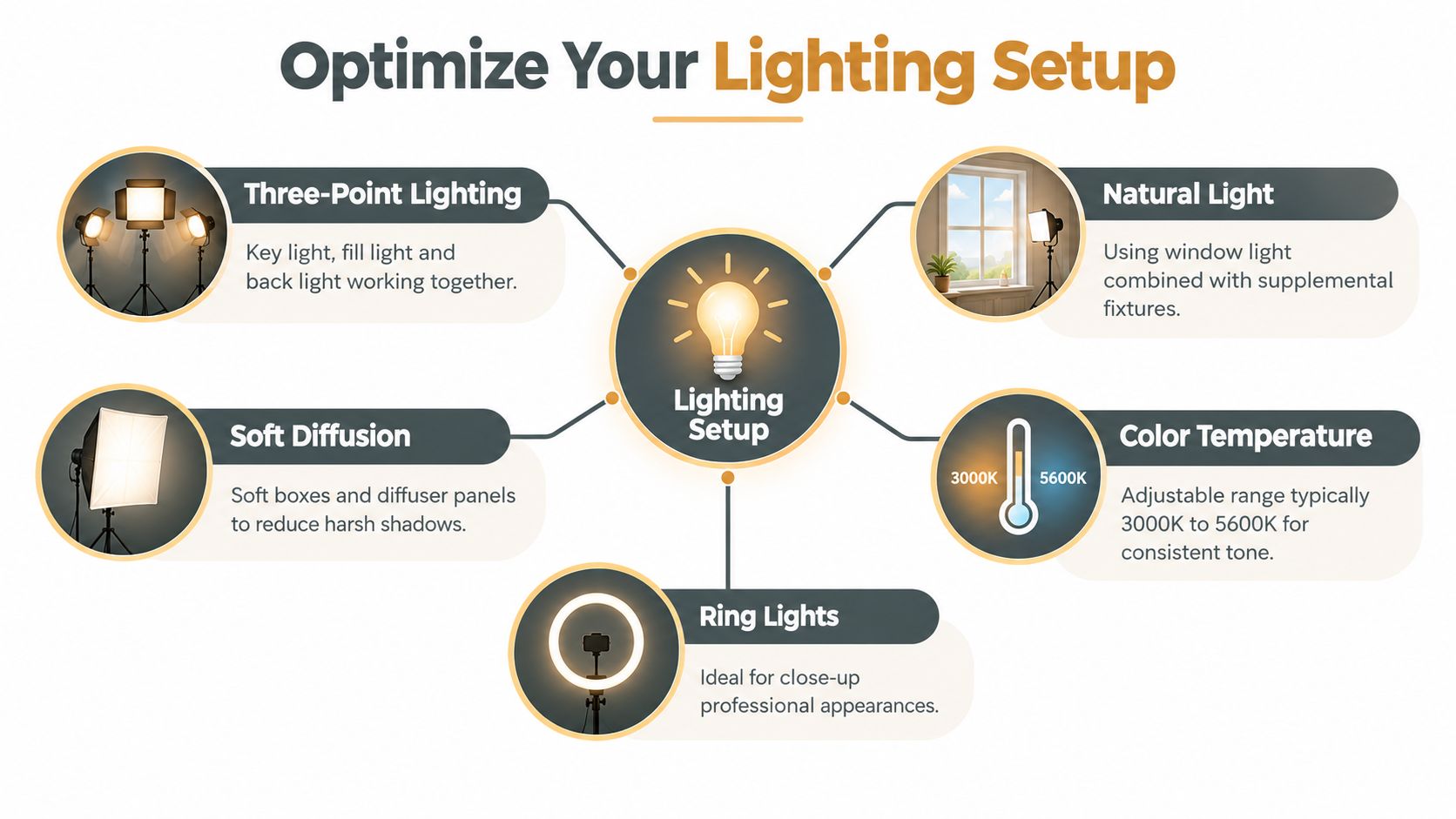
For a practical visual demonstration, watch this lighting example before configuring a room.
2. Master Camera Positioning and Framing
A camera placed too low makes the viewer look up at you from an unflattering angle. A camera placed too far away reduces facial connection and makes ordinary gestures difficult to read. For most business calls, position the lens at eye level or slightly above, with your upper body visible and enough space above your head to keep the frame comfortable.
The camera should sit directly above or near the screen where remote participants appear. That arrangement lets you look toward the people you're speaking with while keeping your gaze close to the lens. The University of Manitoba's video conferencing guidance also recommends eye-level placement and warns against bright windows or lights behind the speaker.
A laptop stand, external monitor riser, or adjustable arm can correct a poor built-in camera position without requiring a new computer. Before an important pitch, check the frame from the participant's perspective. Look for a stable composition, clear shoulders, a recognizable but secondary background, and a face that remains visible when you move naturally.
Let the room support the frame
Freeform House spaces offer architectural features, artwork, and room character that can make a professional backdrop feel authentic. Use those elements selectively. A window or distinctive wall can establish place, but too much visual information competes with your message.
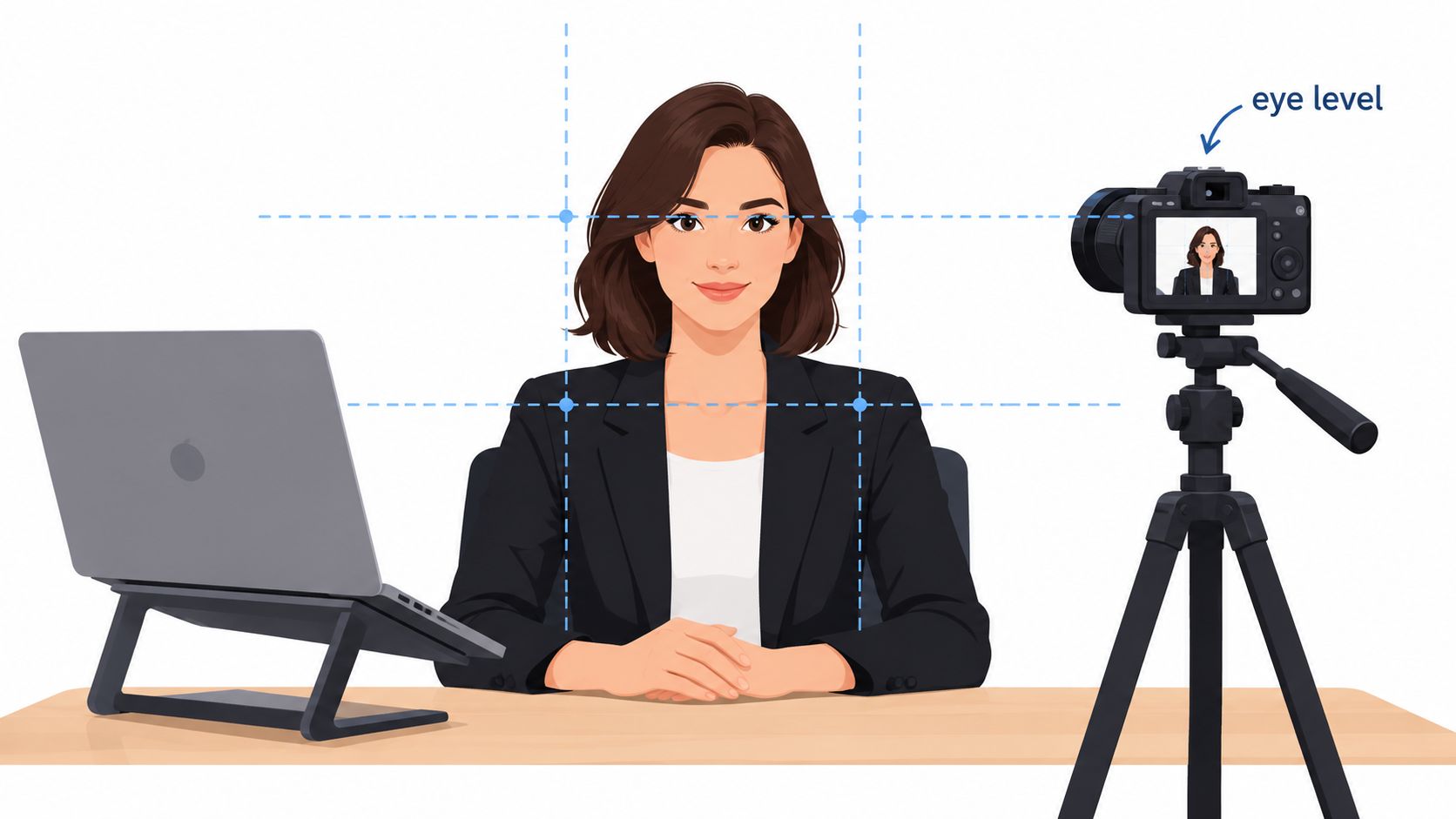
Don't keep adjusting the camera once the meeting starts. A stable frame signals preparation, while repeated repositioning pulls attention away from the discussion.
3. Manage Your Background Professionally
Your background is part of the meeting's visual message. A cluttered room, moving foot traffic, or aggressive virtual effect can make a thoughtful presentation feel improvised. Choose a background that fits the conversation, whether that's a quiet office for an executive discussion, a creative studio for a production review, or a clean shared workspace for an informal team call.
A real room often works better than a virtual background because it preserves natural edges, depth, and lighting. Freeform House members can book the Executive Room or Hall of Fame Room for important client conversations, using an intentionally designed environment without adding digital replacement effects. The result should still look lived-in and credible, not staged like a stock illustration.
Keep one or two meaningful elements in view. A restrained piece of artwork, shelving, or architectural detail can add context. Busy patterns, moving objects, bright screens, and reflective surfaces create visual noise and may confuse background-blur software.
Match the background to the audience
A creative professional may want the space to reveal some production character. An executive discussing confidential work may prefer a quieter, less revealing composition. Position yourself slightly forward so the background remains recognizable but doesn't dominate the frame.
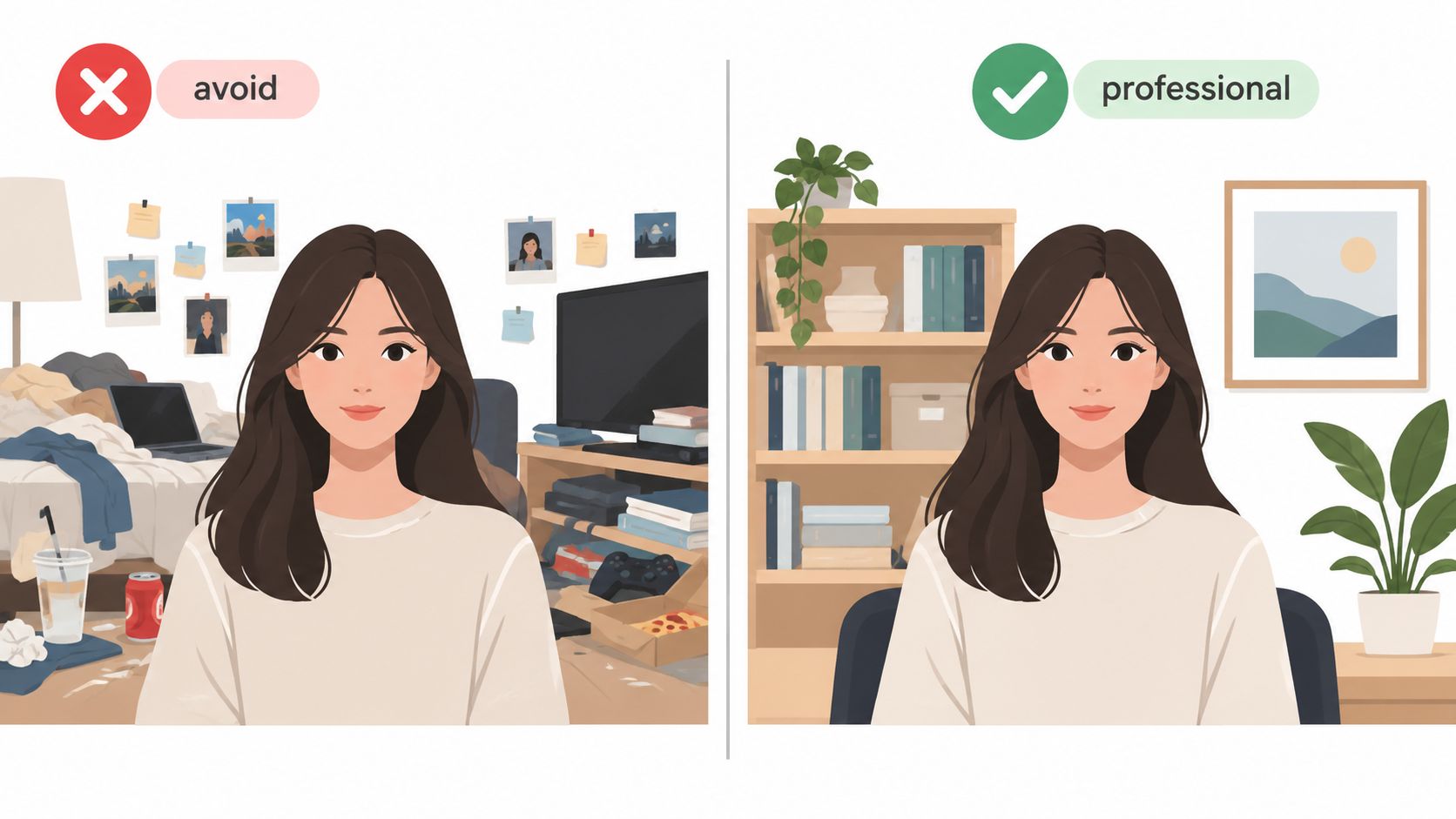
If you use a virtual background, test it with your actual lighting, camera, clothing, and movement. It may hide personal details, but it can also cut into hair, hands, glasses, or furniture. A tidy authentic room is usually the safer choice when the space is available.
4. Ensure a Stable and High-Quality Internet Connection
A meeting platform can't compensate for an unreliable connection. Lag, frozen video, dropped calls, and broken audio interrupt turn-taking and make participants repeat themselves. Test from the room where you'll sit, because a connection that works well near a router may behave differently across a larger workspace.
Use Ethernet when practical. Wired connectivity usually removes some of the uncertainty associated with wireless interference, shared networks, and distance from the access point. If you're using Wi-Fi, work near the router, close unnecessary applications and browser tabs, and avoid starting large uploads or downloads during an important call.
Build a simple fallback
Keep your phone available as a backup hotspot for critical conversations, but don't treat it as an invisible guarantee. A hotspot can have its own coverage, battery, and data limitations. Tell participants early if you're joining from a location where connectivity may be uncertain, and keep the meeting link or dial-in details accessible somewhere other than the video window.
Modern adoption makes this preparation routine rather than exceptional. A 2026 market report says 60% of global employees use video conferencing tools at least once a week, compared with 30% in 2019, according to Zebracat's video conferencing statistics report. The practical implication is straightforward. Teams need repeatable connection habits for ordinary meetings, not only emergency calls.
Freeform House's conference-room resources are relevant when a client call demands dependable connectivity, a display, and on-site support. Check the room before the meeting, confirm the correct network, and know what you'll do if video quality drops. Audio continuity may matter more than keeping the camera on.
5. Use Professional Audio Equipment and Microphone Setup
People can often tolerate a brief frozen image. They can't make a decision if voices keep cutting out, echoing, or disappearing under room noise. Audio deserves priority because it carries the words, interruptions, questions, and subtle cues that keep a meeting coherent.
A dedicated microphone can improve clarity, but placement matters as much as the device. Keep it close enough to capture speech directly, angle it slightly to reduce plosive bursts, and use headphones when speakers might feed back into the microphone. Close doors and windows, pause noisy equipment, and listen for air-conditioning hum before participants join.
The professional podcast equipment guide is useful for anyone who moves between client calls and recorded content. A podcast booth or studio setup can offer more control than a laptop microphone, but a complex rig introduces more settings to verify. Simplicity often wins for a recurring meeting.
Solve the room problem, not only the microphone problem
The University of San Diego recommends distributing conference-room microphones so they pick up all speakers, rather than relying on one device at the end of a table. Its effective video conferencing guidance also advises muting microphones when participants aren't speaking or when background noise becomes excessive.
Freeform House's in-house podcast booth can support professional content production, while its meeting rooms can serve smaller discussions. Choose equipment according to the room and participant pattern. A single directional microphone may suit one presenter, but a group around a table needs coverage across speaking positions.
Always select the intended microphone in the meeting platform and test it there. Operating-system audio levels alone don't prove that the call will sound right.
6. Optimize Your Technology Setup and Software Configurations
Technical preparation should remove decisions from the live meeting. Choose the platform that fits the participants, update the conferencing application before the call, confirm camera and microphone permissions, and close programs that compete for system resources. Zoom, Microsoft Teams, and Google Meet can all work well, but switching between them without testing creates avoidable surprises.
Run the platform's own audio and video test rather than relying only on a previous meeting. Check which camera, speaker, and microphone are selected. Confirm that screen sharing opens the intended application, and practice changing views if you'll present slides, a dashboard, or a collaborative document.
Configure the room around the workflow
A room with a display, microphones, adapters, conferencing tools, strong Wi-Fi, and on-site support can simplify hybrid work, but only if someone knows how those pieces connect. Freeform House's conference-room technology information is a useful reference for members planning a meeting that combines in-person and remote participants.
Save preferred settings where the platform allows it, but don't assume saved settings survive a different room or dock. Camera firmware, graphics drivers, operating-system updates, and privacy permissions can alter the setup. If you're presenting to a client, arrive early enough to test the complete chain, including the room display and remote audio.
Software features don't replace judgment. Use recording, captions, chat, waiting rooms, and screen controls when they support the meeting's purpose. Avoid adding features just because they're available. Every extra control creates another setting that can fail or distract.
7. Establish Clear Meeting Protocols and Etiquette Standards
Good etiquette makes participation predictable. Send the purpose, agenda, joining details, expected preparation, and any access information with the invitation. Start by stating the desired outcome, then explain how people should signal that they want to speak, ask a question, or share a document.
Muting when you're not speaking remains a basic courtesy, especially in shared rooms or homes. Hosts should also tell participants what camera use means for the meeting, while leaving room for individual needs. Camera-on participation can help a small discussion feel more direct, but it shouldn't become a blanket requirement.
Research summarized by SAP says on-camera fatigue is neurologically demonstrable, that adding video doesn't increase focus, and that cameras-on meetings don't fully recreate the benefits of in-person meetings. SAP's guidance on hybrid meetings and workers' state of mind supports camera-off participation and audio-only or captioned access when needed.
Inclusive practice: Make the contribution mandatory, not the camera. A participant who uses audio, captions, or chat can still be fully engaged.
Give larger groups a speaking mechanism
For groups of more than 10 participants, Villanova University advises hosts to demonstrate the raise-hand feature and ask attendees to use it before unmuting. Its virtual meeting etiquette guidance also tells users to mute when entering the virtual room.
Apply the same principle in Freeform House-hosted events, workshops, and offsites. Assign a facilitator, watch chat and raised hands, discourage side conversations, and pause to invite remote participants. A consistent procedure is more respectful than expecting people to interrupt at exactly the right moment.
8. Manage Time Zones and Schedule Meetings Strategically
A meeting time that feels convenient to the organizer may impose the largest burden on someone else. Check time-zone conversions before sending the invitation, state the time zone clearly, and include the local time in the agenda when participants work across regions.
World Time Buddy or a comparable scheduling tool can reveal overlapping working hours. When no option is comfortable for everyone, rotate the inconvenience instead of making the same region absorb early mornings or late evenings. For important discussions, an asynchronous alternative can preserve participation without forcing every person into the live slot.
Design for people who can't attend live
Send the agenda and materials in advance so participants can prepare efficiently. Record meetings when appropriate and permitted, then share approved materials with people who couldn't attend. A recording doesn't replace the need for accessible notes, because searching a long video can be harder than reviewing decisions and questions in writing.
For a distributed client team using Freeform House, the setting can remain polished while the schedule stays considerate. Book the room for the participants who are gathering locally, but design the agenda around the people joining remotely. If regional needs differ sharply, split a complex meeting into focused sessions rather than asking everyone to endure an unsuitable hour.
Scheduling is also a facilitation decision. Put the most important topic where the relevant participants are alert, prepared, and able to contribute. Respectful timing improves the quality of the conversation before anyone enters the room.
9. Implement Effective Screen Sharing and Visual Presentation Techniques
Screen sharing should direct attention, not expose your entire digital life. Open the exact file or application before the call, close private documents and unrelated tabs, disable notifications, and share one window when participants only need to see one source. Sharing the full desktop can reveal messages, customer information, or unfinished work.
Design slides for the screen people use. Large type, strong contrast, limited text, and clear visual hierarchy make a presentation easier to follow. The plan calls for 18-point type as a minimum for readability, but the right size still depends on the content, viewing distance, and participant devices. Test the presentation in the meeting platform, not only in the editing application.
Present and monitor the room together
A secondary monitor can show participant video while the primary display carries the presentation. That arrangement helps a Freeform House member deliver a workshop, training session, or client pitch without constantly switching away from the shared content.
Use a pointer or highlighter to show exactly where participants should look. Pause after changing slides or windows, because remote attendees may see the transition slightly later than the presenter. When a chart is dense, explain the relevant area aloud instead of assuming everyone can decode it instantly.
Accessible presentation requires more than readable slides. Guidance for mixed-ability and hybrid audiences recommends reading chat aloud, describing shared content, using real-time captions, speaking clearly, identifying speakers by name, and providing accessible copies of materials. The Partners Virtually Accessible guidance treats these practices as baseline support for virtual meetings and larger webinars.
10. Create a Distraction-Free Environment and Maintain Focus
A professional meeting space protects attention from three directions: visual clutter, background noise, and competing behavior. Choose a room with a door when possible, silence email and messaging notifications, place your phone on Do Not Disturb, and close applications that don't support the call.
In a shared workspace, tell nearby colleagues that a meeting is in progress. In a home, coordinate around household traffic rather than hoping interruptions won't happen. Headphones can improve what you hear and signal that your attention is committed, but they won't solve a loud room or poor microphone placement.
Freeform House's dedicated meeting rooms and co-working areas can create clearer boundaries than an improvised kitchen table. The choice still depends on the meeting. A private room suits confidential client work, while a co-working area may be better for a short internal conversation where a little ambient energy is acceptable.
Focus is a room decision before it's a willpower decision.
Avoid multitasking even when your camera is off. Reading email, monitoring social media, or switching between unrelated browser tabs weakens listening and makes delayed responses more likely. If video fatigue is a concern, use a camera-off or audio-only option when the meeting's purpose allows it, while keeping your voice, captions, and participation reliable.
Before the call, check that your chair, camera, microphone, power supply, and materials are ready. During the call, keep the visible space stable and return attention to the current speaker. A calm environment gives the agenda a chance to work.
10-Point Comparison of Video Conferencing Best Practices
Item | Implementation Complexity 🔄 | Resource Requirements ⚡ | Expected Outcomes 📊 | Ideal Use Cases 💡 | Key Advantages ⭐ |
|---|---|---|---|---|---|
Optimize Your Lighting Setup | Moderate setup & tuning 🔄 | Medium equipment (LED panels, diffusers) ⚡ | High visual quality and professionalism 📊 | Client meetings, studio content, pitches 💡 | Dramatically improves appearance and credibility ⭐ |
Master Camera Positioning and Framing | Low–Moderate (mounts, testing) 🔄 | Low (stand, riser, external camera) ⚡ | More engaging, flattering on-camera presence 📊 | Interviews, presentations, virtual pitches 💡 | Better eye contact and non‑verbal clarity ⭐ |
Manage Your Background Professionally | Low–Moderate (arrange or virtual) 🔄 | Low–Medium (furnishings or background software) ⚡ | Fewer distractions; stronger professional image 📊 | Client calls, branding-sensitive meetings 💡 | Consistent brand presentation and credibility ⭐ |
Ensure Stable and High-Quality Internet Connection | Low–Moderate (wired, backup planning) 🔄 | Medium (ISP, Ethernet, hotspot) ⚡ | Reliable calls with minimal dropouts 📊 | Large meetings, client demos, multi-user calls 💡 | Prevents technical failures; consistent quality ⭐ |
Use Professional Audio Equipment and Microphone Setup | Moderate (placement, drivers) 🔄 | Medium–High (microphone, interface, headphones) ⚡ | Clearer speech; reduced noise and misunderstandings 📊 | Podcasts, client calls, recordings 💡 | Dramatic audio clarity and professionalism ⭐ |
Optimize Your Technology Setup and Software Configurations | Moderate–High (updates, compatibility) 🔄 | Low–Medium (time, occasional IT support) ⚡ | Fewer glitches; smooth presentations and sharing 📊 | Cross-platform meetings, demos, trainings 💡 | Improved reliability and faster setup time ⭐ |
Establish Clear Meeting Protocols and Etiquette Standards | Low (policy creation & communication) 🔄 | Low (time to document & share) ⚡ | More efficient, respectful, and predictable meetings 📊 | Team syncs, client-facing sessions, events 💡 | Consistent behavior and reduced disruptions ⭐ |
Manage Time Zones and Schedule Meetings Strategically | Low–Moderate (coordination & rotation) 🔄 | Low (tools, planning time) ⚡ | Higher attendance and equitable scheduling 📊 | Global teams, international clients, distributed projects 💡 | Better participation and fairness across regions ⭐ |
Implement Effective Screen Sharing and Visual Presentation Techniques | Moderate (prep, monitor setup) 🔄 | Medium (dual monitors, design time) ⚡ | Clearer messaging and higher participant engagement 📊 | Workshops, training, client pitches 💡 | Improved clarity and collaboration during presentations ⭐ |
Create a Distraction-Free Environment and Maintain Focus | Low–Moderate (space control, discipline) 🔄 | Low–Medium (dedicated space, signage) ⚡ | Improved attention, fewer interruptions, better outcomes 📊 | Deep work, client meetings, high-stakes calls 💡 | Increased focus and professional impression ⭐ |
Turn Better Calls Into Better Collaboration
Effective video conferencing isn't a collection of camera tricks. It's a repeatable operating habit that begins before the invitation is accepted and ends after the decisions are documented.
Prepare the room first. Put the light in front of the speaker, place the camera at eye level, choose a background that fits the audience, and check that the microphone covers every person who needs to contribute. Confirm the internet connection, platform, permissions, display, adapters, and backup joining option. In a dedicated room, identify who will manage the technology so the facilitator isn't troubleshooting while also leading the conversation.
Prepare the people next. Share the purpose, agenda, materials, time zone, access instructions, and participation options in advance. Ask whether captions, accessible documents, audio-only access, or another accommodation will help someone take part. For a hybrid group, assume remote participants need deliberate invitations into the discussion. Don't let the people sitting around the physical table become the only visible audience.
Facilitate with structure. Open by naming the desired outcome. Explain how participants should signal to speak, keep side conversations out of the room, and pause after important points. Watch chat and raised hands, distribute questions across the group, and make space for people who haven't spoken. A smaller meeting is often easier to manage. Research from a large-scale remote collaboration study found that in meetings with fewer than 8 participants, turning on video correlated with a 6% increase in the probability of participation, while using a headset in voice-only meetings corresponded to a 20% increase in the odds of participation. The same study found that every 2 additional participants were associated with a 1 percentage point absolute drop in effectiveness and inclusiveness ratings. These findings are reported in the IEEE Silicon Valley presentation on video conferencing.
Protect access and security according to the meeting's sensitivity. Use the platform's available controls, share only the necessary application window, confirm recording permissions, and remove people who shouldn't be present. Accessibility and security aren't separate from professionalism. They determine whether people can safely participate and whether the material reaches them in a usable form.
End with decisions, owners, and deadlines. Send a concise recap that records what changed, who is responsible, and when the next action is due. Include approved files, captions, or recording access when appropriate. If the meeting failed because of echo, weak Wi-Fi, poor framing, or an unclear process, record the issue and fix it before the next call.
Create two short standards, one personal and one for your team. Your personal version can cover lighting, framing, audio, connectivity, and focus. The team version should cover invitations, time zones, cameras, captions, screen sharing, facilitation, recording, and follow-up. Keep both short enough to use.
Freeform House offers a practical setting for that routine. Choose the room that matches the meeting, test the integrated camera and microphone setup, confirm the display and connectivity, and make the authentic environment part of the experience. The club's meeting rooms, co-working areas, The Rise loft studio, and podcast booth can support executive meetings, workshops, private events, and professional content production without asking the technology to carry the entire impression.
Freeform House provides members with dedicated rooms, co-working space, video conferencing resources, The Rise loft studio, and an in-house podcast booth in downtown Jenks. Visit Freeform House to explore a workspace that can help you prepare, host, and follow up on more focused hybrid meetings.
Comments